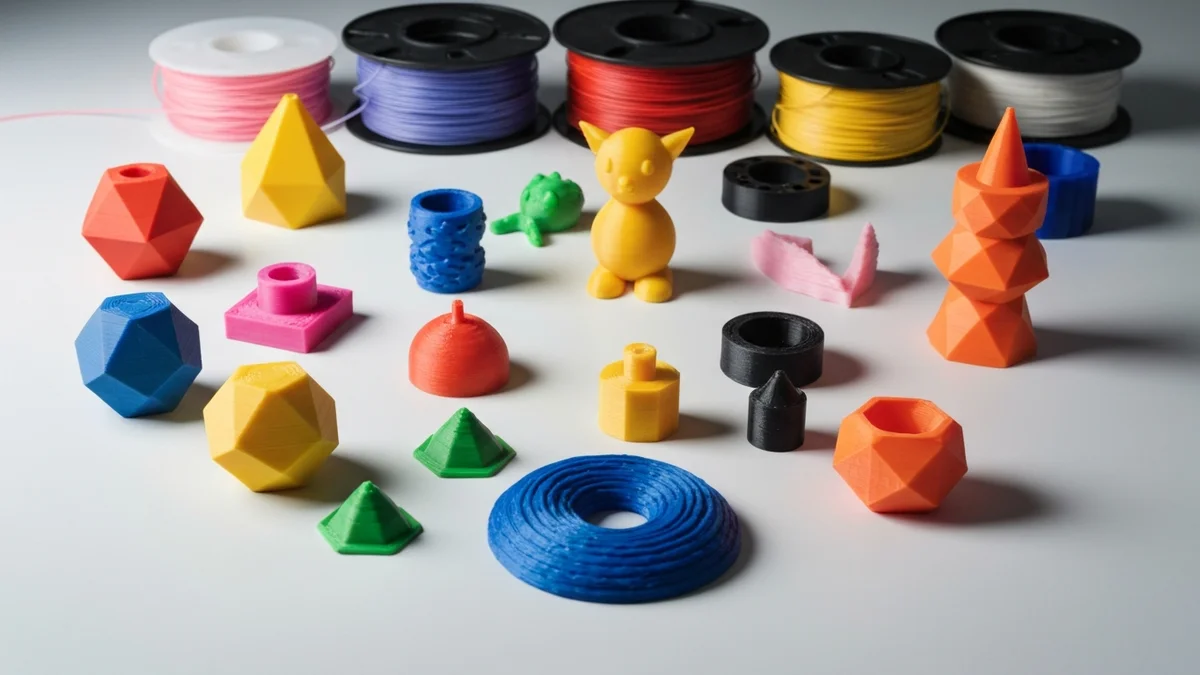
Color and material variety is one of the biggest selling points for 3D printing shops. Customers love being able to choose exactly the color or material that suits their needs, and offering those options increases conversion rates and average order values. But every variant you offer adds complexity to your production workflow — and handling that complexity manually is where errors multiply. A customer ordering a black PETG bracket when you printed a white PLA one has a problem, and so do you.
How Shopify Handles Variants
Shopify's variant system is well designed for exactly this kind of product complexity. A single product listing can have up to three variant dimensions — for example, Color, Material, and Size — with up to 100 total combinations. Each combination gets its own SKU, its own price (if different), its own inventory count, and its own barcode. From the customer's perspective, they make their selections on the product page and check out. On the back end, each variant is a distinct sellable item with its own data.
This structure makes Shopify effective for 3D printing shops because it mirrors how print files are organized: a product in blue PETG is genuinely a different thing to print than the same product in black PLA. Shopify treats them as distinct variants; your production workflow should too.
How SimplyPrint Handles Multi-Material Production
SimplyPrint manages material-specific production primarily through printer groups. You might have a group called "PLA Standard" loaded with PLA on all machines, a group called "PETG Functional" loaded with PETG, and a group called "Resin Detail" for SLA printers. When a job is created and assigned to a group, SimplyPrint routes it to printers in that group — ensuring that material requirements are automatically matched to appropriate hardware.
Files in SimplyPrint can also carry slicing profiles that account for material-specific print settings: temperatures, speeds, layer heights. This means that when a PETG variant is printed, the correct profile travels with the job without operators needing to manually select settings.
How SimplyPrintSync Connects Shopify Variants to SimplyPrint
SimplyPrintSync's variant mapping is the bridge between Shopify's variant system and SimplyPrint's file and group structure. In the Products page inside SimplyPrintSync, you can expand any Shopify product to see all its variants listed individually. For each variant, you configure three things: the SimplyPrint print file that should be used, the printer group it should be assigned to, and the yield (units produced per print run).
Once this mapping is saved, every future order containing that variant automatically creates a job with the correct file and correct group. A customer ordering three different variants in the same order gets three separate jobs created, each correctly configured for its specific variant. No manual sorting, no cross-referencing order details against a spreadsheet, no risk of mixing up which file goes with which variant.
The mapping is also independent per variant, so a shop selling a product in both PLA and PETG can map the PLA variant to a PLA file in the "PLA Standard" group and the PETG variant to a PETG file in the "PETG Functional" group. Material routing is handled automatically from the moment an order is paid.
A Real Example: Phone Cases
Consider a phone case sold in three material options: Black PLA, White PLA, and Translucent PETG. In Shopify, these are three variants of the same product. Each has its own SKU and its own production requirements. In SimplyPrintSync, the mapping looks like this:
- Phone Case — Black PLA maps to
phone-case-black-pla.3mfin the "PLA Standard" printer group, yield 1. - Phone Case — White PLA maps to
phone-case-white-pla.3mfin the "PLA Standard" printer group, yield 1. - Phone Case — Translucent PETG maps to
phone-case-translucent-petg.3mfin the "PETG Functional" printer group, yield 1.
A customer ordering two black PLA cases and one translucent PETG case in the same order triggers three print jobs: two for the black PLA file on PLA printers, and one for the PETG file on PETG printers. The correct materials are queued on the correct hardware automatically, with no operator decision-making required.
Auto-Map by EAN for Variant Catalogues
For shops with large variant catalogues, manually configuring each mapping can be time-consuming. SimplyPrintSync's Auto-Map by EAN feature accelerates this for shops that maintain per-variant barcodes. If the filename of a SimplyPrint print file contains the EAN barcode assigned to a Shopify variant, SimplyPrintSync detects the match and creates the mapping automatically.
Making this work consistently requires a file naming discipline: when you add a new file to SimplyPrint for a new product variant, include the variant's barcode in the filename. The format does not need to be rigid — the barcode just needs to appear somewhere in the filename, such as phone-case-petg-clear-5901234123457.3mf. SimplyPrintSync scans filenames for matching barcodes and builds the mapping table without any manual steps.
This approach scales naturally: adding a new color to your product range means uploading a new file with the right barcode in the name, and the variant is automatically mapped and ready for orders.